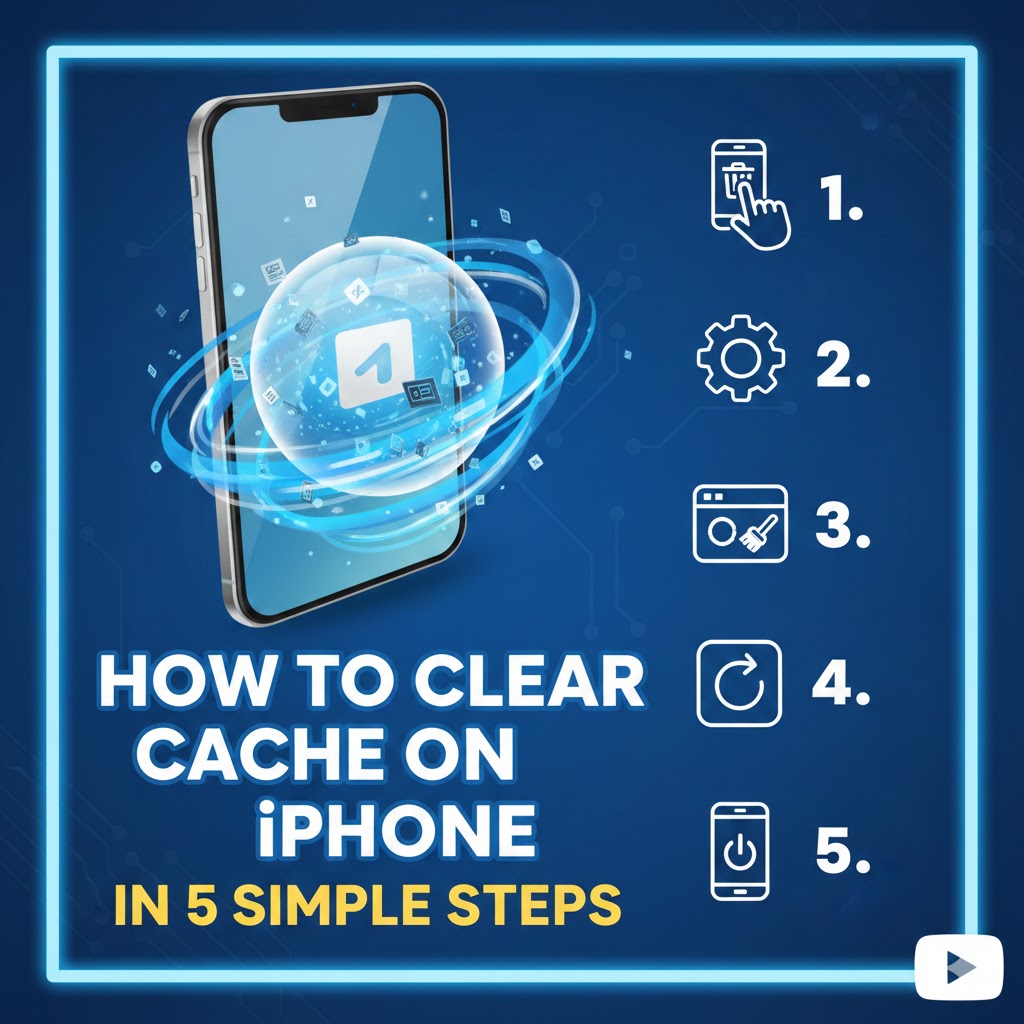
How to Clear Cache on iPhone in 5 Simple Steps
Is your iPhone running slower than usual? Are apps crashing frequently, or is your storage mysteriously filling up? Learning how to clear cache on iPhone might be the solution you need. Over time, your iPhone accumulates temporary files, website data, and app information that can bog down performance. In this guide, I'll show you exactly how to reclaim precious space and speed up your device with some simple cache-clearing techniques.

Understanding Cache on Your iPhone
Cache files are temporary data that your iPhone stores to help apps and websites load faster. Think of cache as your device's short-term memory – it remembers information so it doesn't have to reload everything from scratch each time. While this improves performance initially, these files accumulate over time and can eventually slow down your device.
According to Apple's support documentation, cache files can occupy significant storage space, especially if you frequently use apps like Safari, social media platforms, and streaming services. Understanding what cache is helps explain why clearing it regularly is essential for maintaining optimal iPhone performance.
How to Clear Safari Cache
Safari, Apple's default browser, stores a significant amount of cache data as you browse the web. Here's how to clear it:
- Open the Settings app on your iPhone
- Scroll down and tap on "Safari"
- Scroll down again and tap "Clear History and Website Data"
- Confirm by tapping "Clear History and Data" in the pop-up
This process will remove browsing history, cookies, and other cached data. Keep in mind that you'll be logged out of websites you were previously signed into, so have your login information ready.
how to clear cache on iphone becomes particularly important for Safari users who browse frequently, as the browser can accumulate several hundred megabytes of cache data over time.
How to Clear Individual App Cache
Unlike Android devices, iOS doesn't offer a straightforward way to clear cache for individual apps through settings. However, you have two main options:
Option 1: Offload and Reinstall
- Go to Settings > General > iPhone Storage
- Scroll to find the app you want to clear
- Tap on the app, then select "Offload App"
- After offloading, tap "Reinstall App"
This method preserves your app data while clearing the cache.
Option 2: Delete and Reinstall
- Find the app on your home screen
- Press and hold the app icon until the menu appears
- Tap "Remove App" and confirm
- Visit the App Store to reinstall
For users wondering how to clear app cache on iphone without losing data, the first option is generally safer. However, some apps like Spotify and Instagram require the second approach for a complete cache clearing.
Clearing System Cache
Your iPhone also stores system-level cache that affects overall performance. While there's no direct "clear system cache" button, you can use this effective method:
- Go to Settings > General > Shut Down
- Slide to power off your device
- After the iPhone turns off completely, hold the power button to restart
- Once restarted, hold the volume up button and power button simultaneously
- Release when you see the Apple logo
This soft reset helps clear temporary system files without affecting your personal data. According to Stanford University's Mobile Device Management guide, this technique can help resolve performance issues related to system cache accumulation.
how to clear cache on iphone at the system level should be performed monthly for optimal maintenance.
Using App Offloading as an Alternative
For those who want a middle ground between keeping apps and deleting them entirely, iOS offers automatic app offloading:
- Go to Settings > App Store
- Toggle on "Offload Unused Apps"
This feature automatically removes apps you rarely use while preserving their documents and data. When you reinstall them, all your personal information is restored as if the app was never deleted.
how to clear cache on iphone can be partially automated with this feature, which is particularly useful for users with limited storage space.
When Should You Clear Your iPhone Cache?
Knowing when to clear your cache is as important as knowing how. Consider clearing cache when:
- Your iPhone is noticeably slower than usual
- Apps crash frequently
- You're running low on storage space
- Websites aren't displaying correctly in Safari
- An app is behaving erratically
how to clear cache on iphone should become part of your regular device maintenance, ideally every 1-3 months depending on your usage patterns.
For heavy app users wondering how to clear app cache on iphone more specifically, consider clearing cache for large apps like Facebook, TikTok, and YouTube monthly, as these tend to store substantial amounts of temporary data.
Conclusion
Learning how to clear cache on iPhone is a simple yet effective way to improve your device's performance and free up valuable storage space. By following the steps outlined in this guide, you can maintain your iPhone in optimal condition without needing technical expertise.
Remember that clearing cache is a maintenance task rather than a one-time fix. Incorporate it into your regular device care routine to keep your iPhone running smoothly. Have you noticed a performance improvement after clearing your cache? Share your experience in the comments below or explore our other iPhone optimization guides!
Frequently Asked Questions
Does clearing cache delete photos on iPhone?
No, clearing cache does not delete your photos. Photos are stored as permanent data, not cache files. They remain untouched when you clear app or browser cache.
Will I lose my saved passwords if I clear Safari cache?
Yes, clearing Safari's cache and history will remove saved website passwords. Consider using iCloud Keychain or a password manager to securely store your credentials.
How much storage can I free up by clearing cache?
The amount varies based on usage, but many users report freeing up 1-4GB of space after a thorough cache clearing, especially if it hasn't been done in months.
Why can't I directly clear cache for all apps like on Android?
This is due to Apple's iOS design philosophy, which prioritizes app management through its own framework rather than giving users direct control over app cache files.
Is there a way to clear all cache at once on iPhone?
Unfortunately, iOS doesn't offer a single button to clear all cache. You must clear Safari cache separately from individual apps, and some app cache can only be cleared by deleting and reinstalling the app.
How often should I clear my iPhone's cache?
For optimal performance, clear Safari cache every 1-2 months and high-usage apps every 2-3 months. If your phone is running slow, clearing cache should be one of your first troubleshooting steps.
Does resetting my iPhone clear all cache?
Yes, a factory reset will clear all cache along with all other data on your device. However, this is an extreme measure and should only be used as a last resort.